From draft to placement in one flow

Create a Telegram ad post and send it to a channel admin

Build a Telegram ad with media, link buttons, a lead magnet and click tracking, then send the finished placement request to a channel administrator.

Create a Telegram ad post and send it to a channel admin

What you can do

How to prepare and send an ad

What the administrator controls

The platform, schedule, pinning, automatic deletion and final request decision stay with the administrator.

01

Build the post from text and media

Build the post from text and media

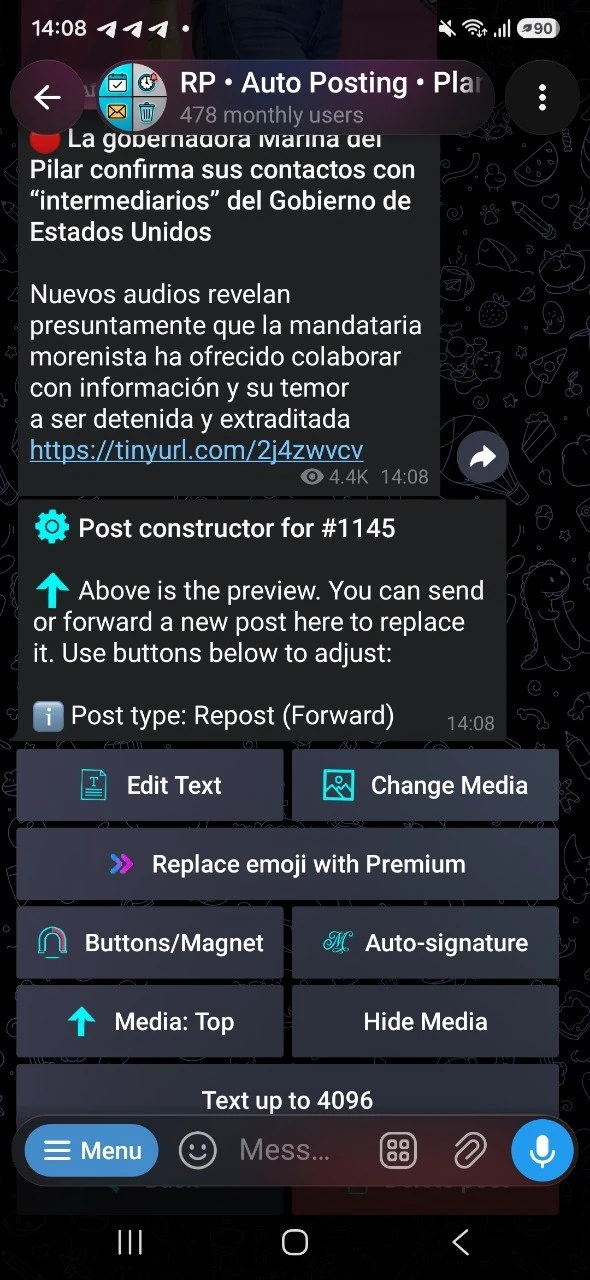
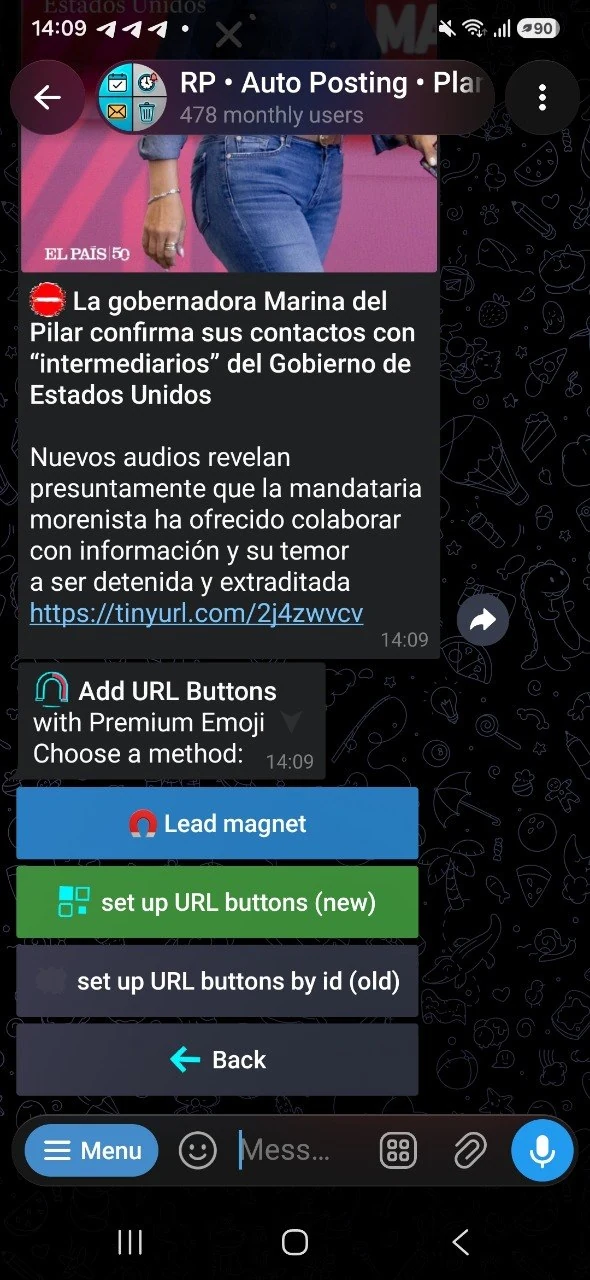
Send new text, a photo, video or album, or forward a ready post. In the preview you can replace text and media separately, move the image, hide it with a spoiler and style the copy with Premium Emoji. The 4,096-character text mode is available only for a post with one photo.
02

Add buttons, a signature and a clear call to action

Add buttons, a signature and a clear call to action

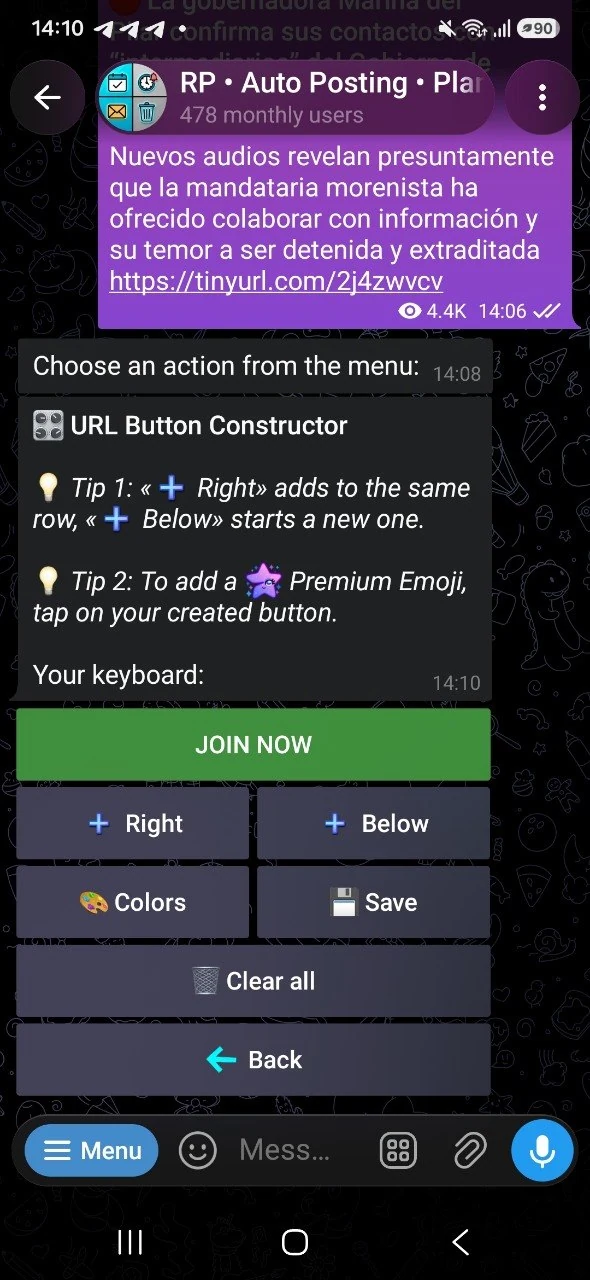
Give each URL button a clear label and destination, then place it beside another button or on a new row. You can change its color, add Premium Emoji, delete one button or clear the layout. A separate signature is useful for contact details, disclosure or recurring information.

03

Deliver a gift after channel subscription

Deliver a gift after channel subscription

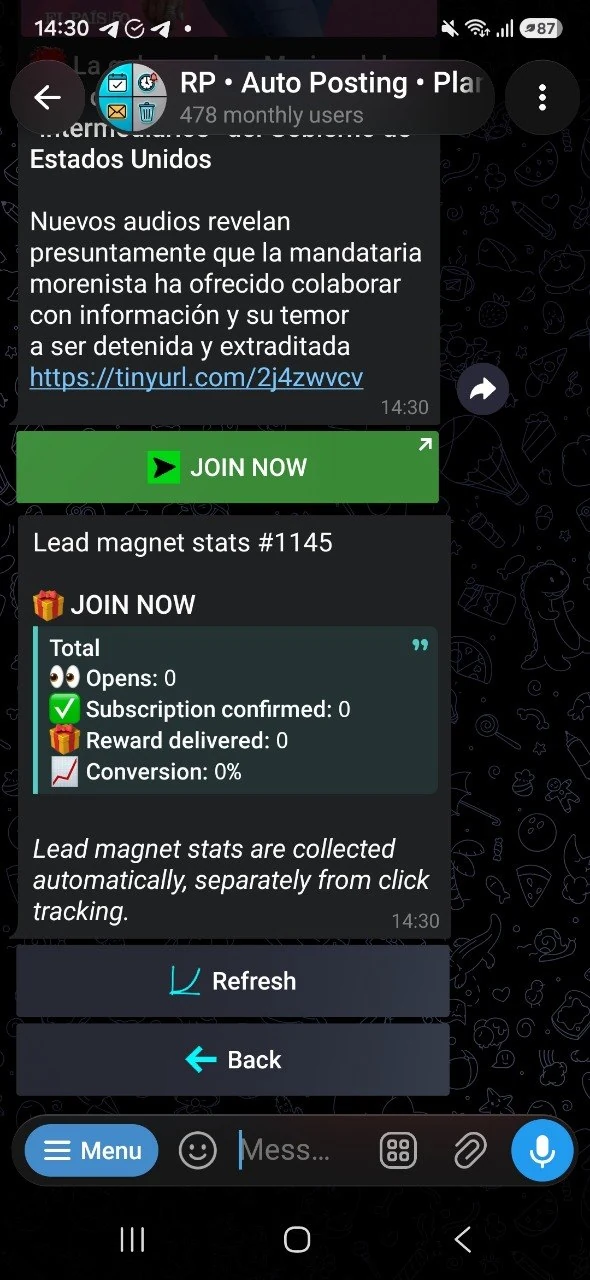
Create a lead magnet as text, a link, promo code, photo, video or a file up to 50 MB. Select your channel so the bot can verify membership, then customize the button label, color and emoji. The channel carrying the ad does not need the bot; only the channel whose subscription is checked must be connected.

04

Track button clicks and the lead-magnet funnel

Track button clicks and the lead-magnet funnel

Enable tracking for ordinary URL buttons before publication to collect clicks. Lead magnets report opens, confirmed subscriptions and delivered gifts separately. If there are no buttons yet or the ad has not run, the statistics screen explains what must be configured first.

05

Choose a platform and send the request

Choose a platform and send the request

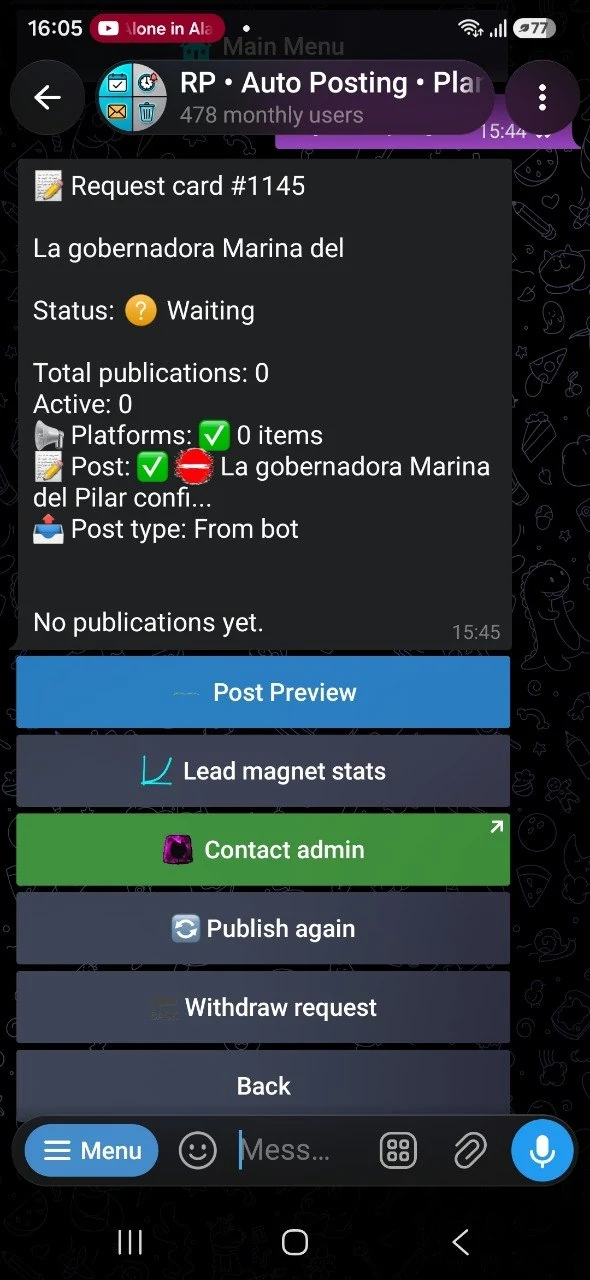
Open the administrator catalog, review the price card and select a recipient. The bot shows the finished post again and asks for confirmation before sending. If the required administrator is missing, create a personal request link and send it directly.

06

Follow the campaign and edit when allowed

Follow the campaign and edit when allowed

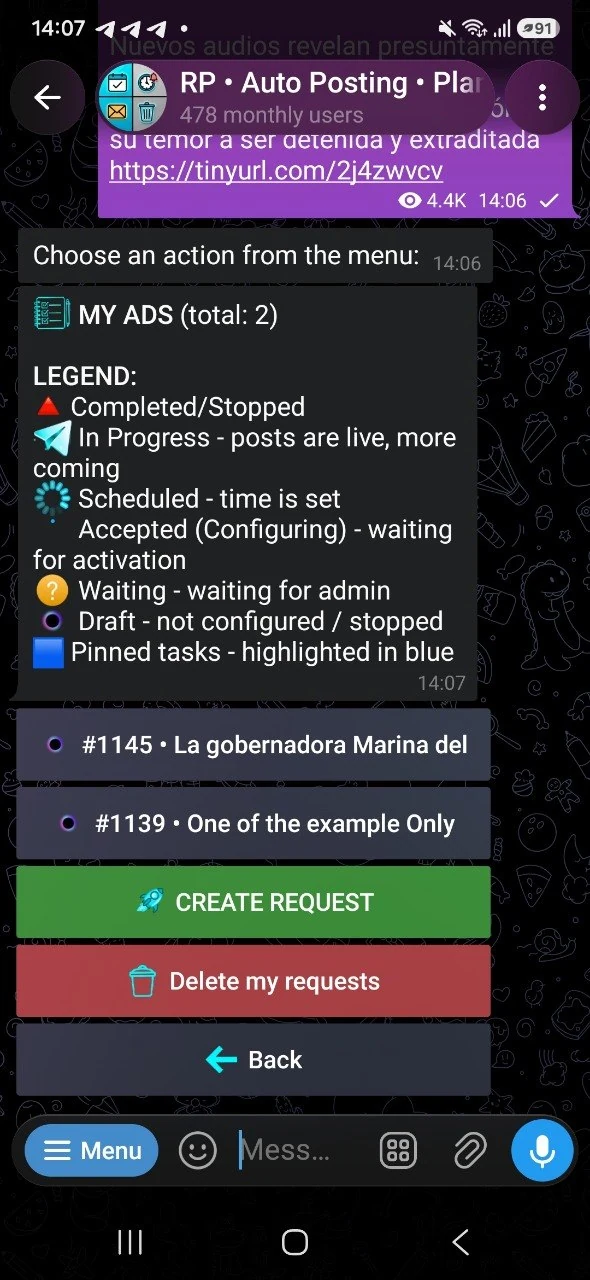
My Ads shows drafts, pending requests, accepted placements, upcoming posts and completed runs. Withdrawing a request keeps the draft available for editing and resubmission. Edit Post appears only when the administrator grants permission; saving updates future runs and notifies the administrator, while already published messages remain unchanged.

Common questions

Do I need my own channel to build an ad post?

No. You can prepare a post and request without owning a channel. A channel is required only when a lead magnet must verify membership before delivering the gift.

Why are click statistics empty?

Tracking for a regular URL button must be enabled before publication. Data appears after the ad runs and people click; lead-magnet opens, subscriptions and deliveries are counted separately.

Can I change a post after sending it?

Yes, when the administrator allows editing until the first run or throughout the placement. Changes affect future runs; already published messages are not rewritten automatically.

Is there an advertiser plan or task limit?

Advertiser drafts do not consume an administrator task allowance. Advertisers can keep up to three active lead magnets, with one file up to 50 MB.

Conditions and limits

Advertiser drafts do not consume an administrator task allowance. Advertisers can keep up to three active lead magnets, with one file up to 50 MB.